




Visit

Main Content Area

Information Technology

Avaya Cloud Office

With Avaya Cloud Office Aims staff have the ability to make and receive phone calls from a computer, whether at Aims or remote, or on a personal mobile phone. No matter what device is used to make the call, the staff member’s Aims phone number will be displayed. Using Avaya Cloud replaces the need to use a physical desk phone.

In addition to the cloud calling feature, Avaya Cloud also offers faxing, chat/messaging, and more. Though these tools are available, it is not required that you use them in place of any preferred existing tools (such as Zoom meetings.)
Avaya Cloud

The primary way for you to make and receive phone calls is using the Avaya Cloud application already installed on your Aims computer. If you cannot find Avaya Cloud on your Aims computer, please contact the IT Help Desk for assistance. Avaya Cloud is available on the Aims application self-service portal. Click the Arty icon on your computer desktop and choose “Avaya Cloud.” The application will self-install. Alternatively, you can also access these same tools using the Avaya Cloud Office web app.

Using Avaya Cloud

Avaya Custom Settings

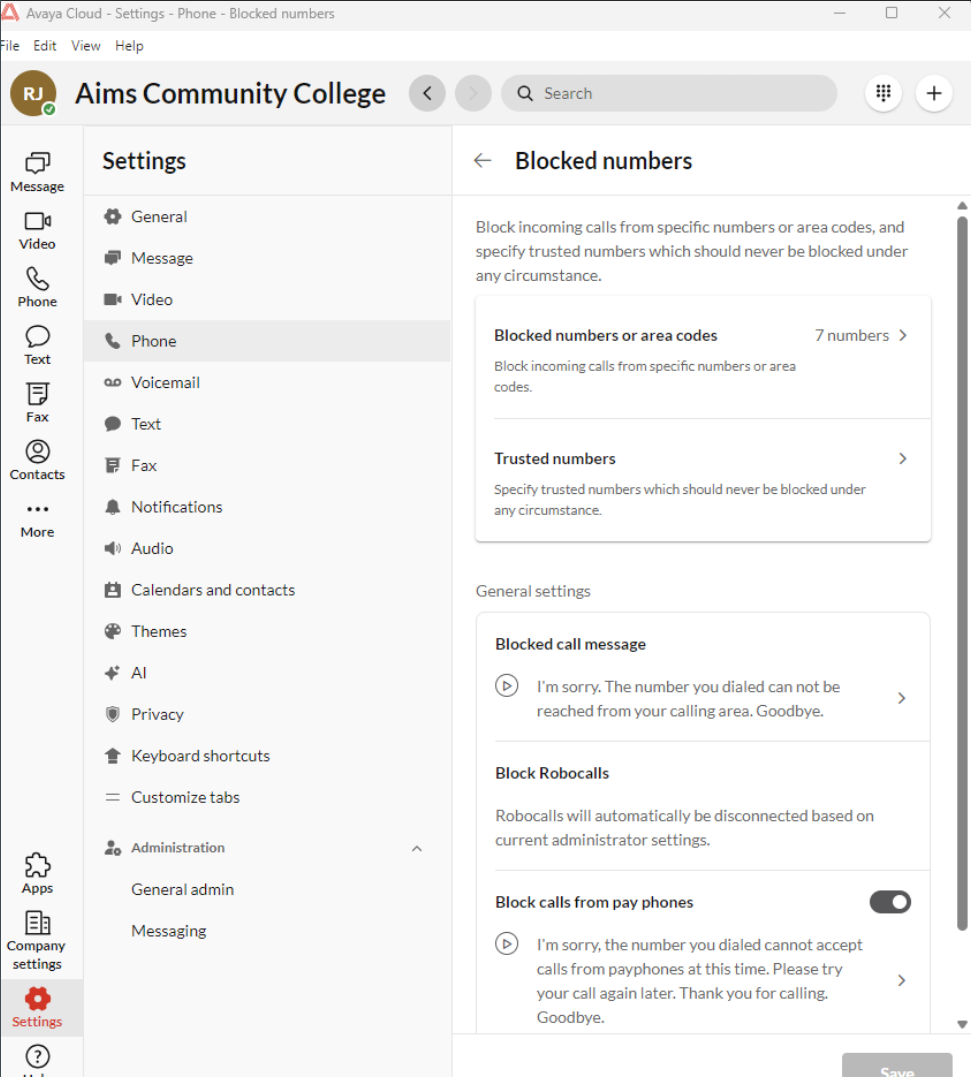
After you have activated your account, you will be able to manage settings for your voicemail, calling options, and more at avaya.com or by clicking the gear icon of the Avaya Cloud app screen.