Introduction
- As part of the Aims Digital Accessibility Initiative, we adhere to the Web Content Accessibility Guidelines (WCAG 2.1, Level AA), required by the Americans with Disabilities Act, Title II and Colorado State regulation HB21-1110.
- This helps to ensure best practices for many different types of content including audio and video, along with helping to improve the user experience for all who use Aims D2L courses.
- For audio/video accessibility specifically: using captions, transcripts, and in some cases audio descriptions, helps users to process audio or video information at their own pace:
- So that everyone, including people with a wide range of disabilities, can perceive, understand, and interact with this digital content.
- Having captions and transcripts can actually make the difference for whether or not someone can consume audio or video content you upload or embed within a D2L course. This goes for your content and third-party content.
Summary
- Captions, transcripts, and audio descriptions are three core methods for achieving media accessibility.
- Providing these tools are based on meeting the requirements of the Web Content Accessibility Guidelines (WCAG 2.1 AA).
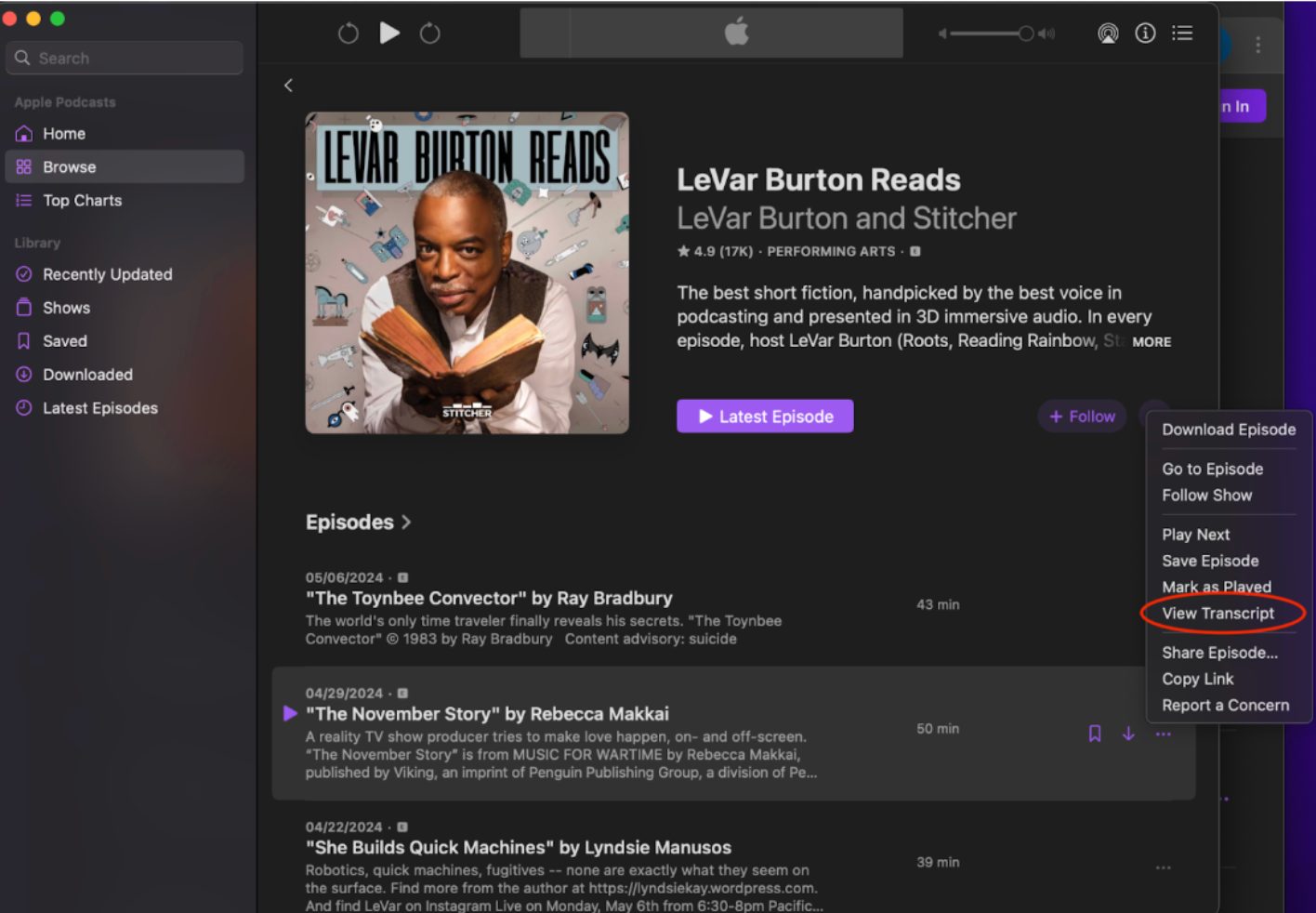
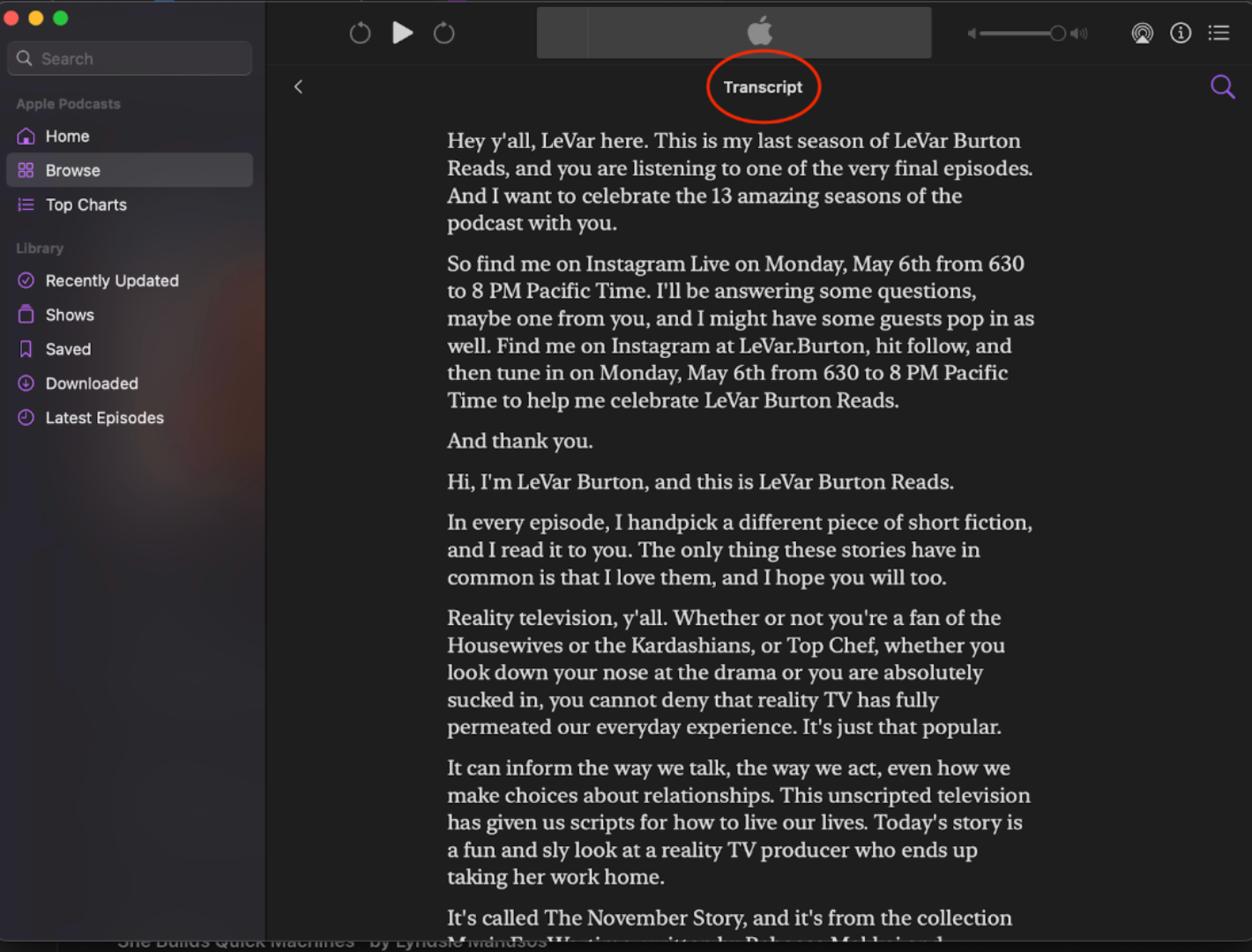
- Prerecorded audio-only content (e.g., podcasts) must be accompanied by a transcript.
- Prerecorded videos with audio must include accurate closed captions and, if key visual information is not spoken, audio descriptions must also be provided.
- Both live audio and video streaming events require live captions.
- AI tools can be used to generate captions, transcripts, and audio descriptions, but faculty need to review them for accuracy, spelling, and proper context.
- If a video is hosted on the YuJa enterprise video platform and embedded into a D2L course, Panorama would check for the presence of captions.
- Media players must be fully operable by keyboard, not just with a mouse, and must be able to support and display captions, transcripts, and audio descriptions.
- Avoid video content that flashes too quickly - can trigger seizures in users with photosensitive epilepsy.
- Avoid auto-playing animated gifs. Let the user choose to play/pause.Benefits of audio and video accessibility
People who have disabilities
- People who are hard of hearing or deaf:
- Benefit from captions and transcripts to understand spoken content.
- People who have low vision or blindness:
- Benefit from audio descriptions (AD) to hear key visual information, and also transcripts to understand dialogue or narration.
- People who have cognitive difficulties like ADD, dyslexia, ADHD:
- Benefit from transcripts for review and comprehension of information at their own speed.
- People with mobility or sensory-motor difficulties:
- Benefit when media player buttons can be navigated with a keyboard.
Everyone
- Captions allow viewing of videos in different environments like a busy restaurant or a quiet library reading room.
- Transcripts can also help people learning languages to understand spoken language and learn vocabulary.
Audio accessibility
High quality recorded audio and clear speech benefit everyone.
Two types of audio files
- Prerecorded audio-only podcast streaming files or any type of audio file linked to within a D2L course
- This applies to podcasts created at Aims.
- Provide a transcript, if the podcast player has functionality to add one.
- If the player does not support transcripts, generate a transcript for the media, check it for accuracy, upload it onto a media server, and place a link to it adjacent to the podcast player, where you have that linked to within your D2L course.
- This also applies to podcasts linked from third-party sources.
- Live audio-only streaming
- Live captions are provided for all live audio-only streaming content.
- Once the live streaming content is completed:
- Prepare your prerecorded audio to post online with a transcript as discussed above.
Video accessibility
High quality recorded audio and video benefit everyone.
- Prerecorded video with audio
- A closed caption file (WebVTT or SRT format) must be provided.
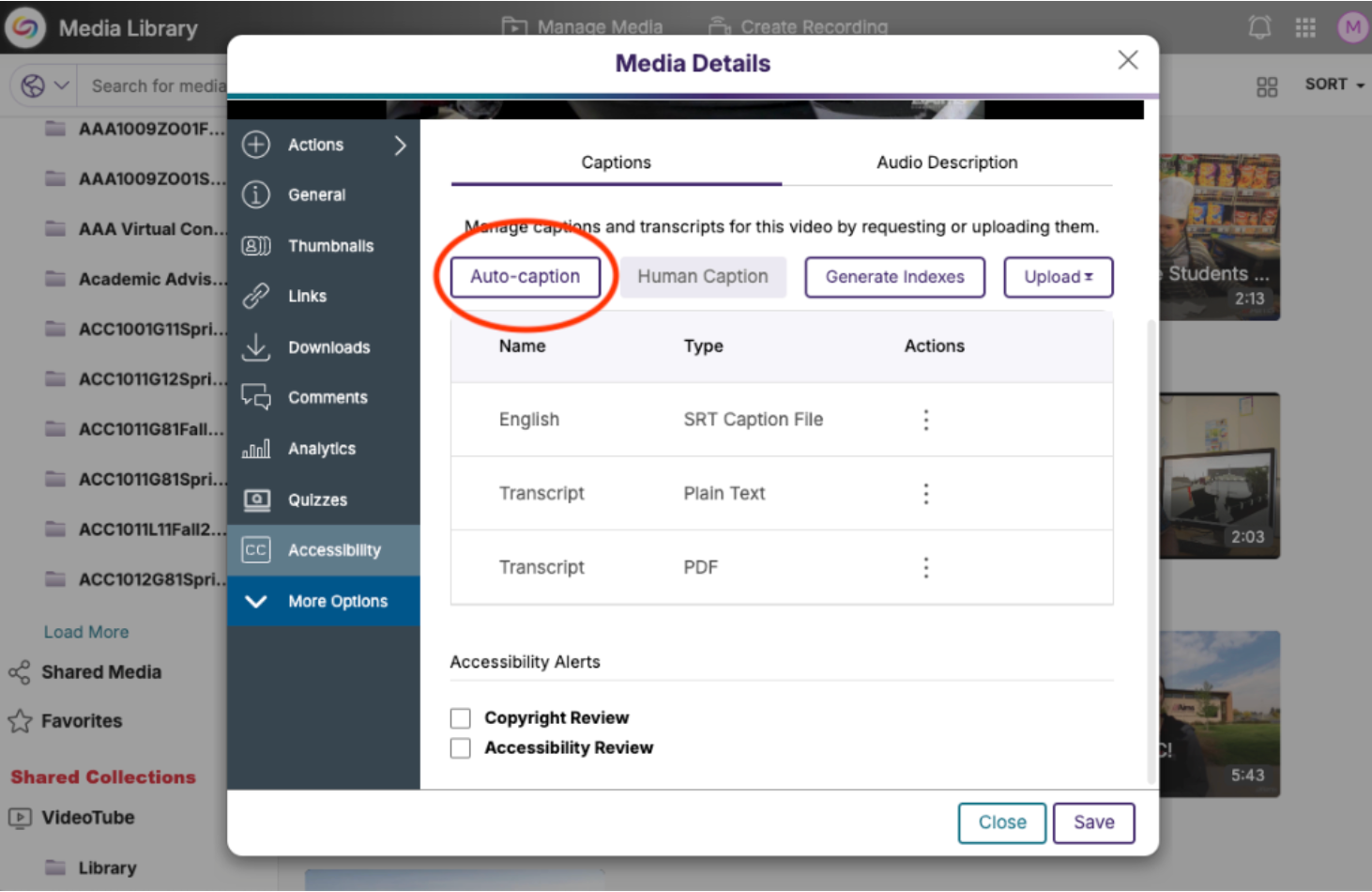
- Videos can be uploaded to the YuJa enterprise video platform, auto-captioned, and linked within D2L course content.
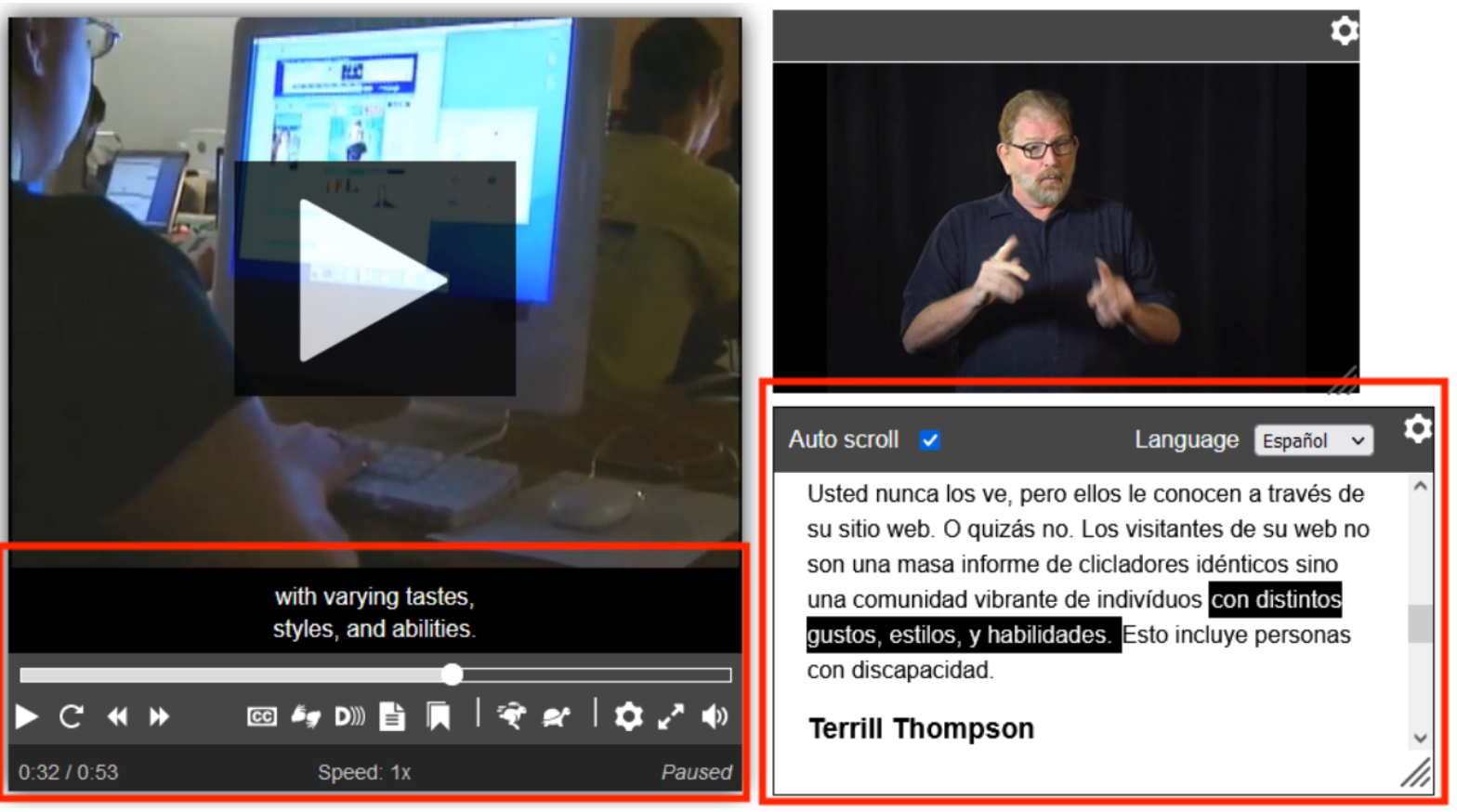
- If a media player has an interactive transcript functionality, you can enable that feature.
- You can also generate an HTML or text transcript, place it next to the link to the video in your D2L course, and link to it from a media server.
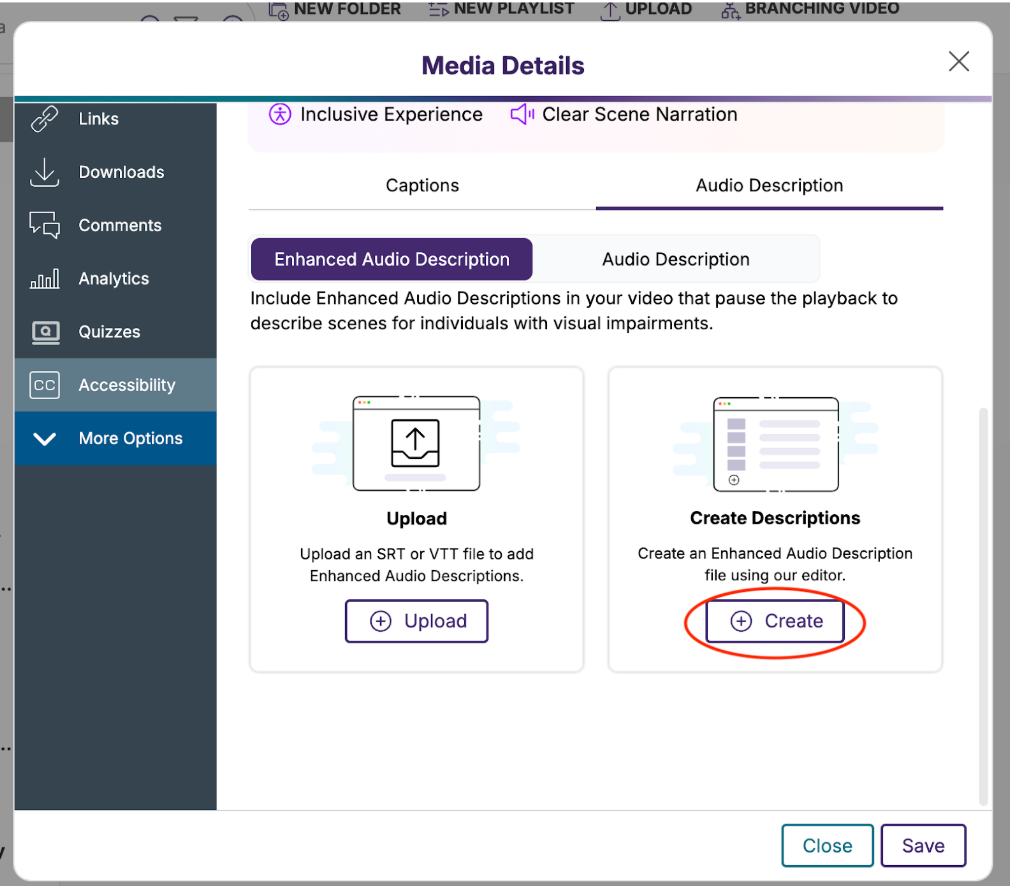
- If the captions do not describe key visual information, then audio descriptions would be needed.
- Write these to describe that key visual information and manually add audio descriptions via the YuJa enterprise video platform.
- A closed caption file (WebVTT or SRT format) must be provided.
- Live video with audio streaming
- Provide live captions for live video streaming events (live captioning is called CART services).
- A sign-language interpreter can also be considered.
- After the event, the recorded video can be uploaded to YuJa enterprise video platform.
- The video will be auto-captioned. Check for accuracy.
About captions, transcripts, AI tools, and audio descriptions
Why are captions and transcripts important?
- Vital for people with hearing difficulties or deafness. They provide access to dialogue and explain non-speech sounds like music and laughter.
- Also help identify speakers, overcome audio challenges like background noise or accents, and ultimately help to ensure access to media content.
Captions
There are two main types:
- Closed Captions (CC) can be turned on or off in a media player.
- Open Captions (OC) are permanently embedded into a video.
- Captions must be accurate and properly synchronized with the video and audio.
- Inaccurate captions can lead to miscomprehension of video content, especially with complex or specialized terminology like equations, formulas, and scientific notations.
- Should include all dialogue, crucial sounds, and meaningful non-speech information like music.
- Clearly identify who is speaking, especially when there are multiple speakers.
- Help to improve comprehension for individuals with cognitive impairments, and they can enhance focus, boost retention, and support diverse learning styles.
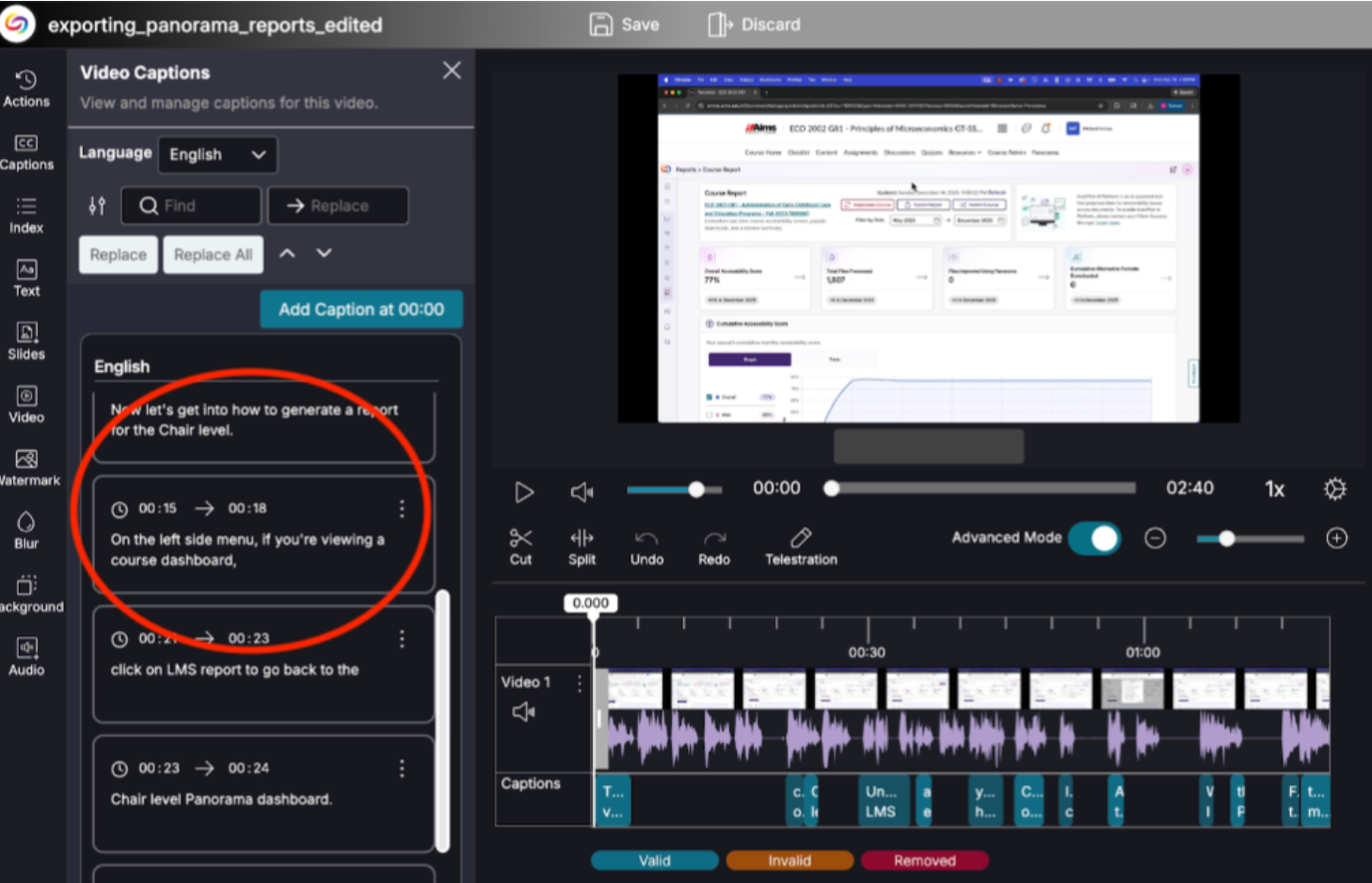
- The YuJa platform automatically captions videos upon upload. Check these for accuracy, proper context, and any spelling errors.
- Subtitles are different from captions: They are for language translation and it is assumed the user can hear the audio but doesn't understand the language, so they typically only translate the dialogue.
When a video has no captions
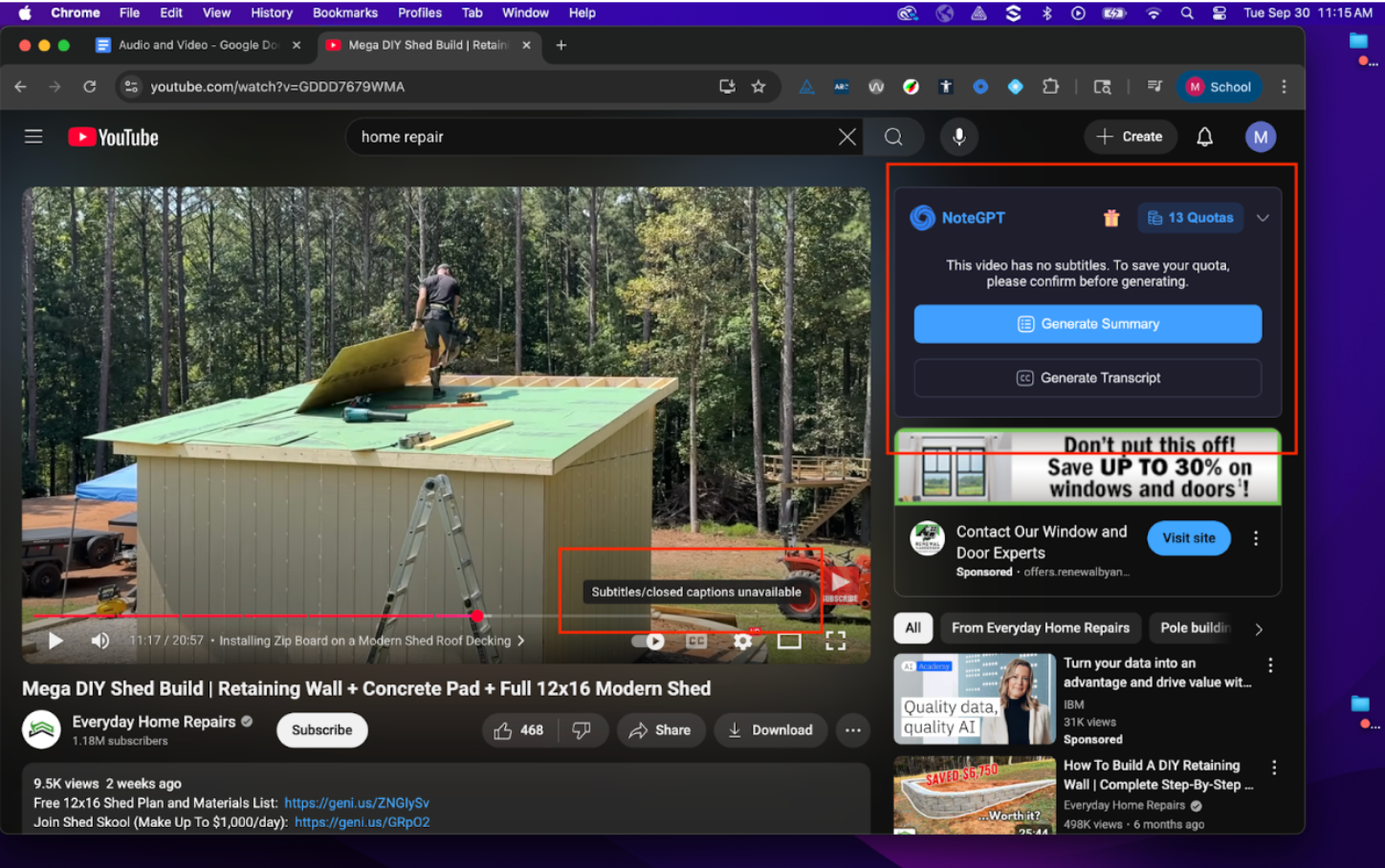
Example of a YouTube video that has no captions.
If a video has no captions, you will want to generate a transcript, (can use NoteGPT or another AI tool), post that in your D2L course or on a media server and link to it adjacent to the link to this video in the D2L course.
To add NoteGPT for use with YouTube, you need to install the NoteGPT Chrome browser extension.
https://notegpt.io/
Transcripts
- Transcripts are text versions of media content (dialogue, actions).
- Provide a complete written record of the content, allowing for self-paced reading, review, and easy searching for keywords or specific sections of text.
- Two types:
- Static Transcripts: Include all necessary speech and non-speech audio information.
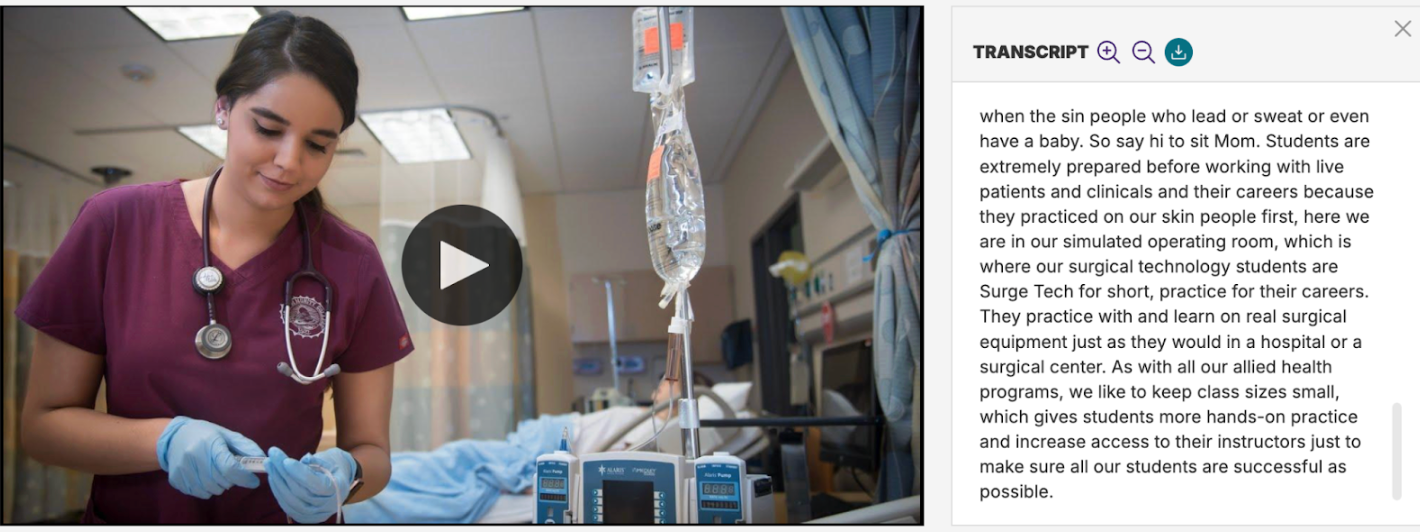
- Interactive transcripts do as well. This functionality works within an HTML5 media player. It highlights spoken words and allows users to click text to jump to that point in the media.
- The YuJa video platform will generate transcripts at the same time it auto-captions a video.
- For audio-only content (like a podcast) a transcript is the primary accessibility requirement.
Example of an Aims video with the transcript file.
AI and audio/video accessibility
- Generative AI tools, like Google Gemini, ChatGPT and others, can be used by students and instructors to automatically analyze a transcript and provide summaries and key takeaways, helping users to process and review content more efficiently.
- AI tools like NoteGPT can quickly generate transcripts, but need to be checked for accuracy / spelling.
- They can also analyze video content, identify key visual elements, and automatically generate audio descriptions. This would need to be checked for accuracy.
AI-generated captions and transcripts can pose accessibility challenges
- These need people to review them and fine-tune text descriptions to ensure accuracy, proper context, and nuances in emotional tone.
Check things like:- Spelling errors, proper punctuation, capitalization, and speaker identification.
- Accuracy can often be 80−90%, falling short of the 99% required by WCAG 2.1
Level AA.
- Accuracy can often be 80−90%, falling short of the 99% required by WCAG 2.1
- Omission of essential non-speech sounds like music, losing critical context for users.
- Spelling errors, proper punctuation, capitalization, and speaker identification.
- Timing can be inconsistent, leading to text that is out of sync with the audio and video.
Audio descriptions
- Audio description (AD) is a secondary audio track that narrates key visual information for people who are blind or have low vision.
- Narrates essential visual information not conveyed through dialogue that is captioned (e.g. scenes, actions, settings), ensuring full comprehension for those who can't see the video.
- When needed in a video, AD can be critical for accessibility for individuals who are blind or have low vision, and also benefits auditory learners.
- Note, if a video doesn’t have visual information like that, audio descriptions are not needed.
- After writing or generating an audio description, you can set these up manually for your video in the YuJa platform. It allows you to automatically pause the video momentarily so that you can insert a detailed description of a complex scene with key visual information.
Panorama
If a video is hosted on the YuJa enterprise video platform and embedded into a D2L course, Panorama would check for the presence of captions since these two programs are integrated. However, if a video is from a third-party source like YouTube, Panorama will only check the link to the external video, it will not score your video. So you would need to check for captions and transcripts yourself. The same would go for third-party audio podcasts linked to from a D2L course. You would need to check to see if a transcript is provided.
Accessible media players
- Have the ability to play captions and interactive transcripts. They can also play audio descriptions if needed and available.
- All controls must be labeled and be accessible by keyboard so that they are screen reader compatible.
- If controls aren’t fully keyboard operable, these users may face a barrier to access.
- Many people, whether sighted or not, cannot use a mouse, relying entirely on keyboard navigation.
- Users must also be able to adjust playback speed and the appearance of captions (size, color).
- Avoid using autoplay for audio or video content. Give users full control to play/pause media.
- Finally, a media player needs to function reliably across different browsers and devices.
Flashing content in video
- Avoid video content that flashes too quickly - more than 3 times per second - can trigger seizures in users with photosensitive epilepsy. Avoiding use of flashing content at all is best.
- Photosensitive epilepsy is a type of epilepsy where seizures are triggered by flashing lights, patterns, or other visual stimuli.
- When creating video content, avoid any rapid changes in brightness or color that might be perceived
as a flash.
Animated GIFs
- Avoid auto-playing animated gifs. Let the user choose to play/pause.
- The GIF must not contain anything that flashes more than three times in any one-second period.
- Descriptive GIFs: If the GIF is essential to understanding the content (e.g., showing a step-by-step process), the alt text must describe every meaningful frame or action shown in the loop.
- Illustrative GIFs (Memes): If the GIF is purely for illustrative or emotional effect, the alt text should convey that emotion and the source/action if well-known.